Configure WAN Access (i.e. Remote Access) - HD Wireless IP Camera
Most users want to access their network cameras outside their LAN (e.g. home network). They may access via a cellular connection, a Wi-Fi hotspot, workplace network, etc. We have received far more questions about this topic than any others.
The following are the quick steps to set up WAN access:
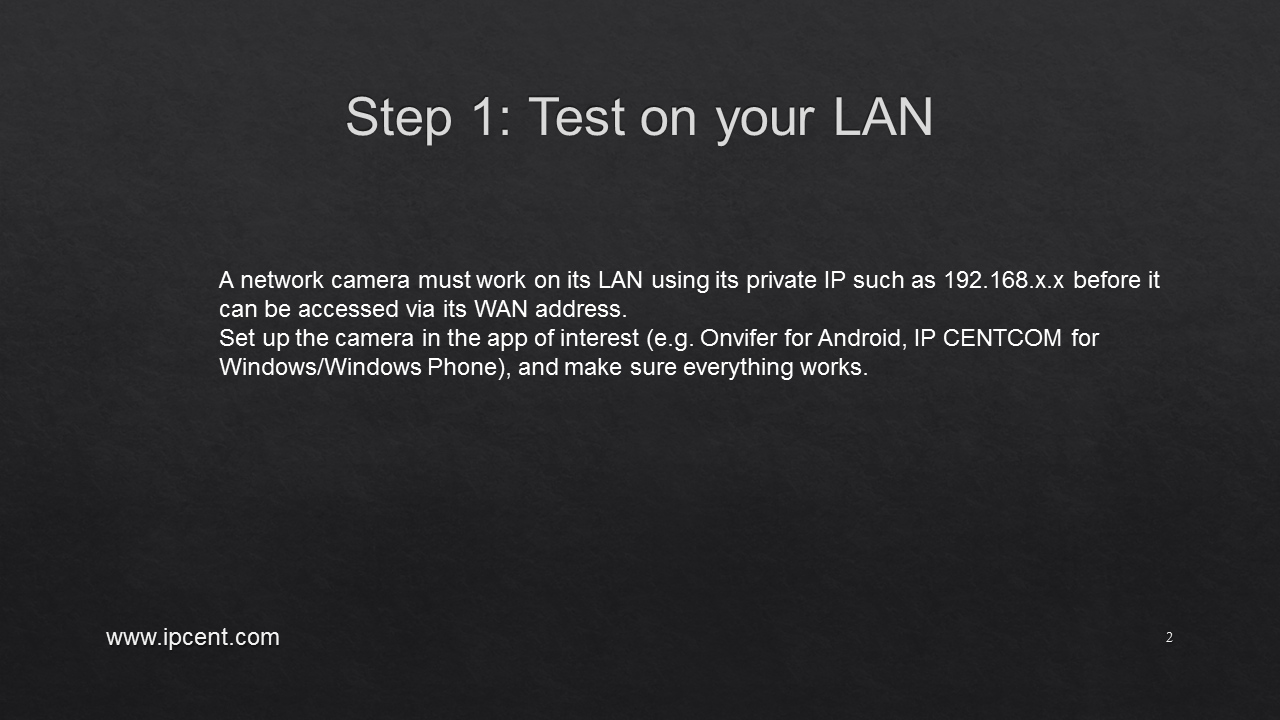
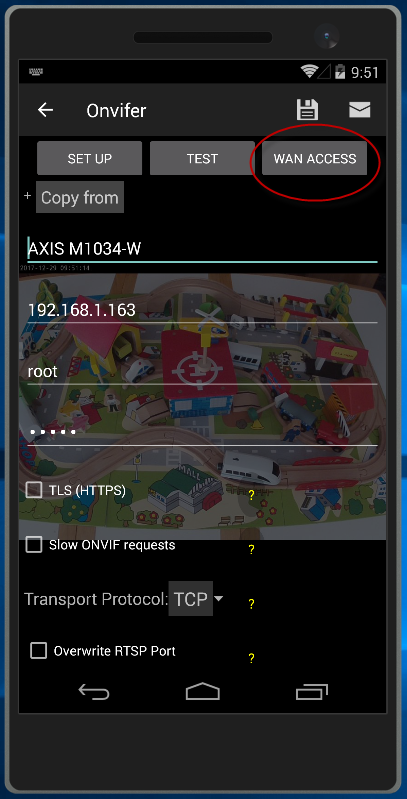
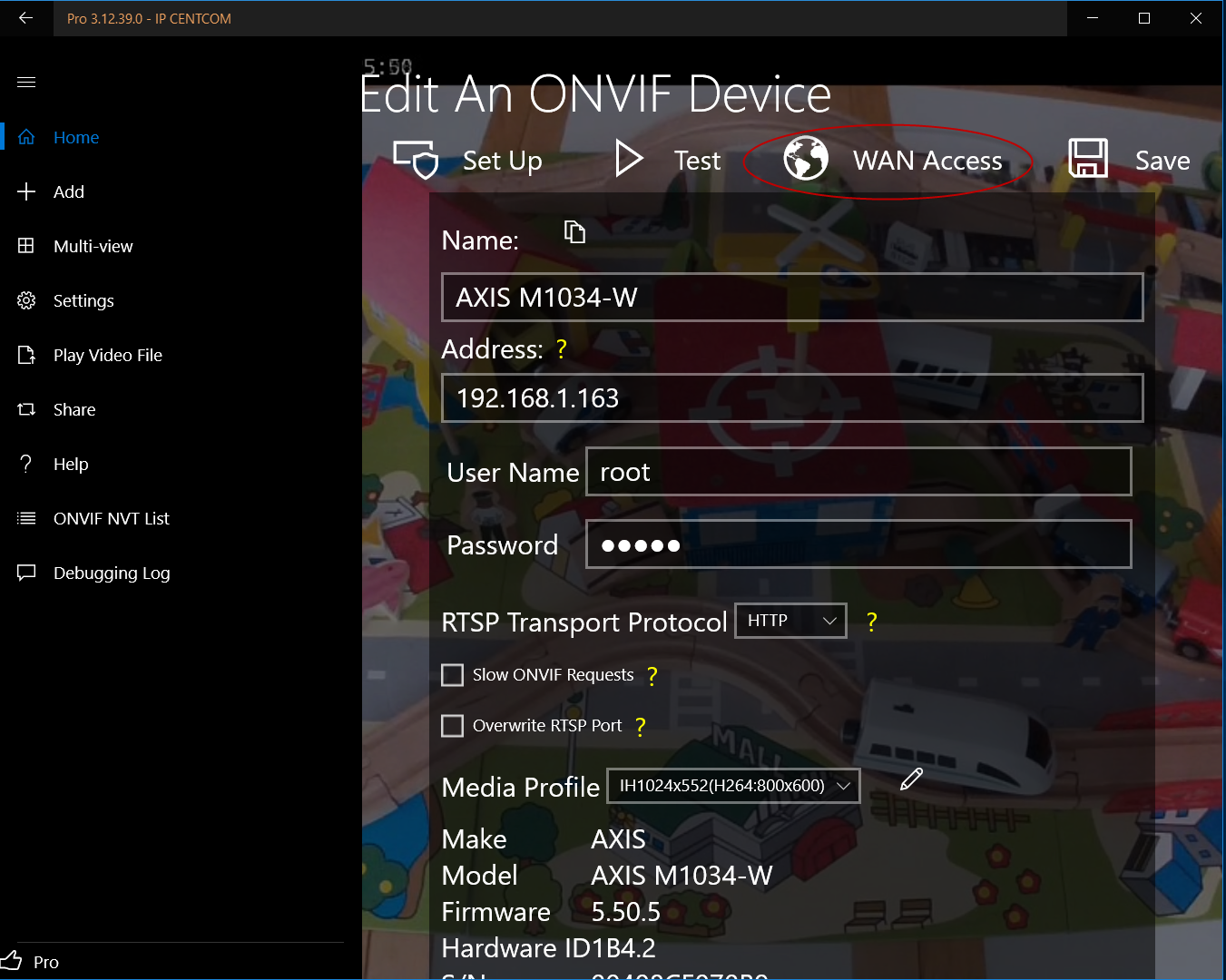
If you happen to use one of our apps, you can click button WAN Access after the video test on the setup screen is finished successfully as following figures show for Onvier for Android, and IP CENTCOM for Windows and Windows Phone respectively:
You will get specific step-by-step instructions for the configured network camera as following:
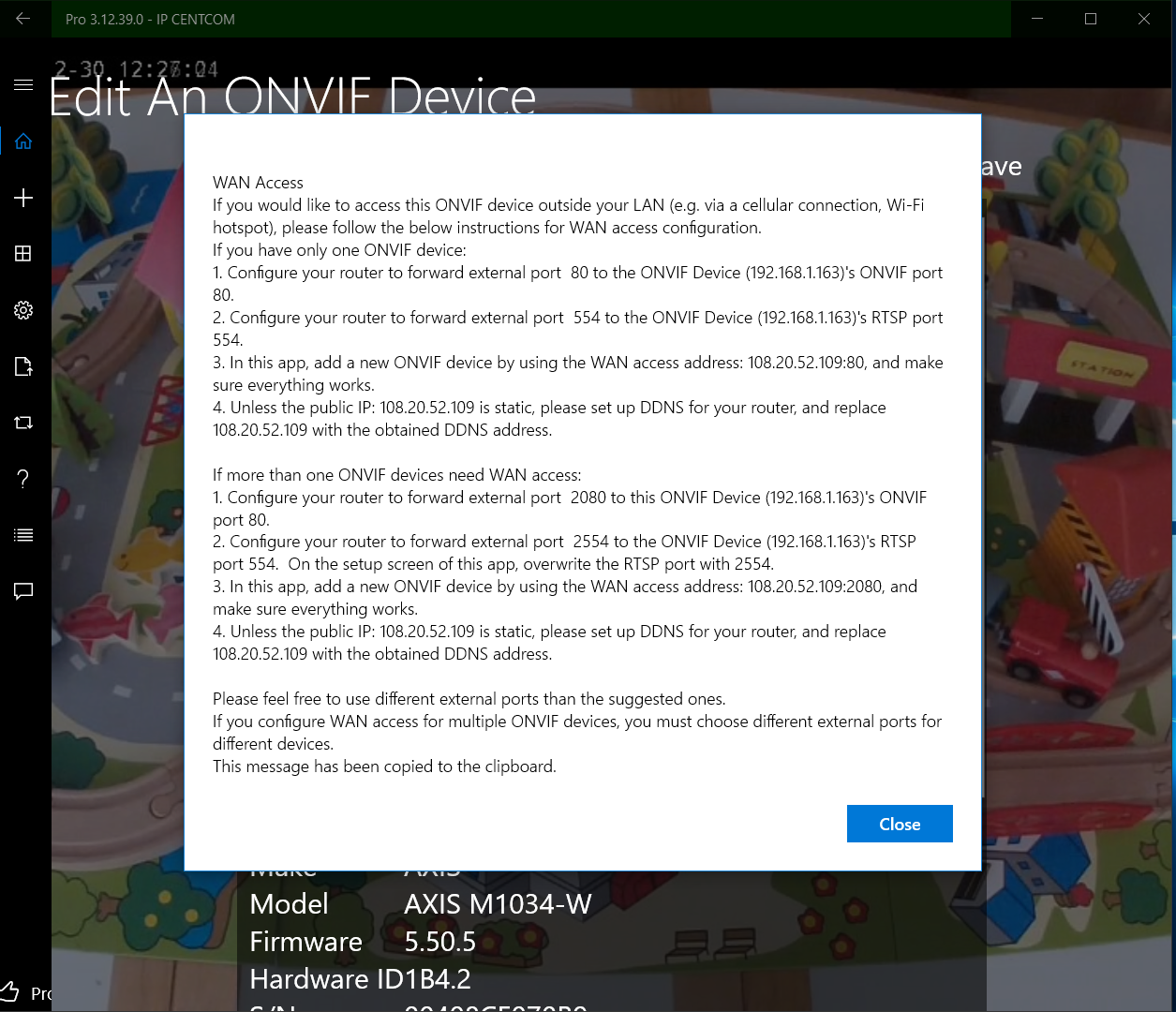
We hope you will read the following to gain fundamental understanding of WAN access configuration regardless of whether you use our apps. It may look daunting to configure the WAN access, but it actually takes only a few minutes to do it once you know how. This section may be a bit long because we try to help you understand the principles behind the process. The specific steps highly depend on your camera and router.
Please note that most instructions here regarding configuring WAN access are NOT specific to our apps. They are applicable no matter which app (including browsers) you use to access your device remotely unless you use technologies such as P2P that maintain a constant connection between your camera and a server of a company that is usually unknown to users.
Let us have some basic understanding of how network cameras are accessed first. Every network camera has an IP address (e.g. 192.168.0.100) on a LAN. Non-technical users can treat this IP address as a street address, and their LAN (e.g. home network) as a city. Every computing device on your LAN can find the network camera by its IP address, just like everyone in your city can locate a home by its street address.
A network camera may use more than one port (the default port is HTTP default port 80). Each port offers a unique service. For example, one port for web UI, one port for RTSP. Non-technical people can treat ports as doors of a home. You get different services by entering different doors.
The IP address of a network camera is a private IP. The most common range is 192.168.0.0 - 192.168.255.255, followed by 10.0.0.0 - 10.255.255.255. They are least likely in the private IP range of 172.16.0.0 - 172.31.255.255. Private IPs are good for a LAN. It is like that a street address "101 5th Avenue" is good for locating a home in a city, but you cannot use it to locate a home in another city because every city may have "101 5th Avenue". Every LAN may have a device using a private IP address such as 192.168.0.101.
Now, we can talk about how to access a network camera outside its LAN, or access a home outside its city.
Each LAN is behind a router (or gateway), and the router has an IP address and that IP address is public IP address, not a private IP address like that of a network camera though the IP address's format is the same. Since it is a public IP, the router can be accessed on the Internet anywhere in the world. How do we tell a router that we want to communicate with a specific network camera on the LAN behind it? The trick is port forwarding.
The only way to access a computing device on a network is through its IP address and ports. If there is only one network camera on a LAN, we can ask the router to forward everything to the camera, and everything will be the same as accessing the camera on the LAN except using the public IP address of the router. This would not work for multiple network cameras.
To deal with multiple cameras, we need to allocate different ports for different cameras. In other words, you will access every network camera with exactly the same IP address - the public IP address of the router, but with different ports. Using the city analogy, you will send/request packages to different homes of a city by using its different doors. For example, doors 8080 and 5556 of the city to doors 80 and 556 of address 101 5th Ave, doors 8082 and 5558 of the city to doors 80 and 556 of 102 5th Ave, and so on.
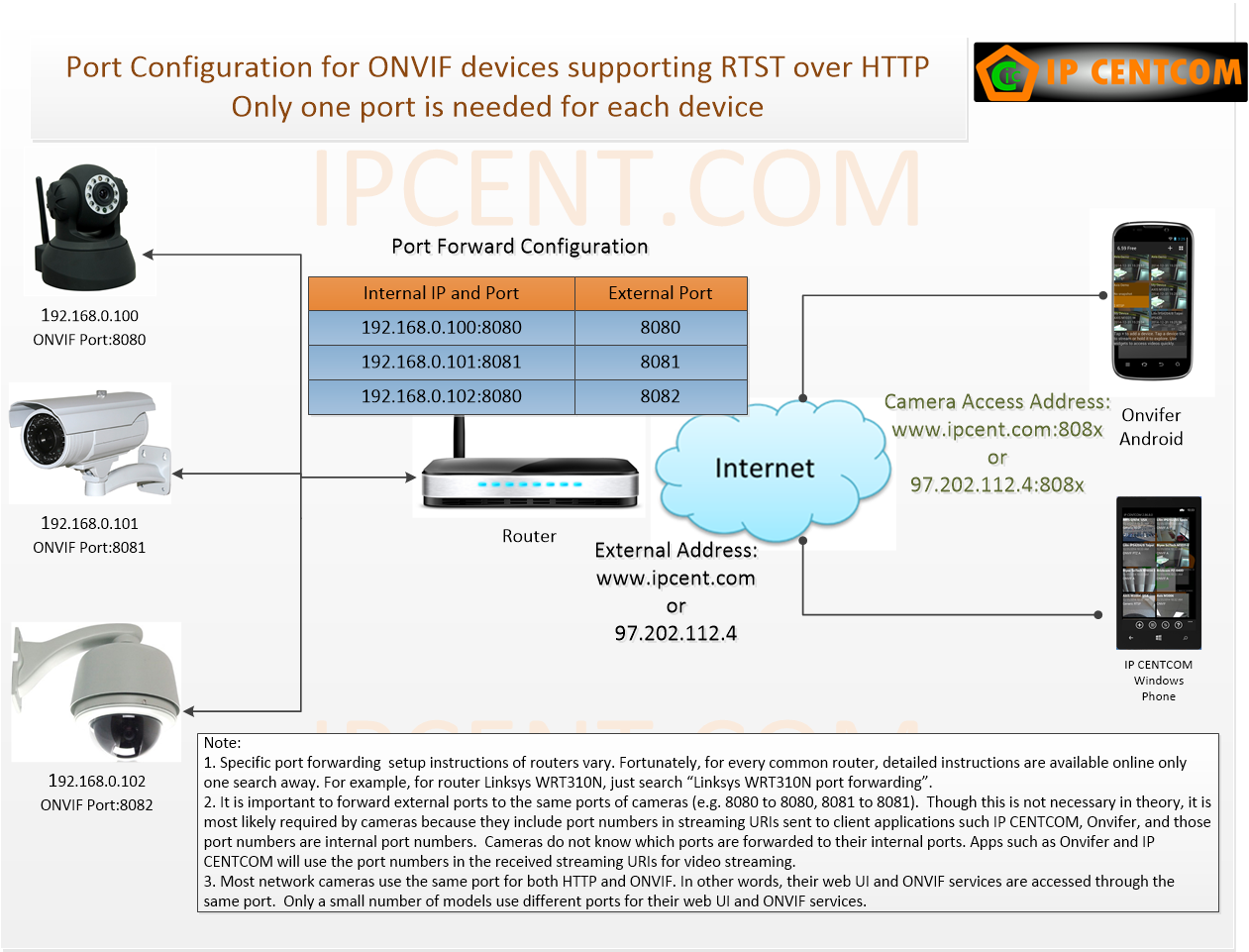
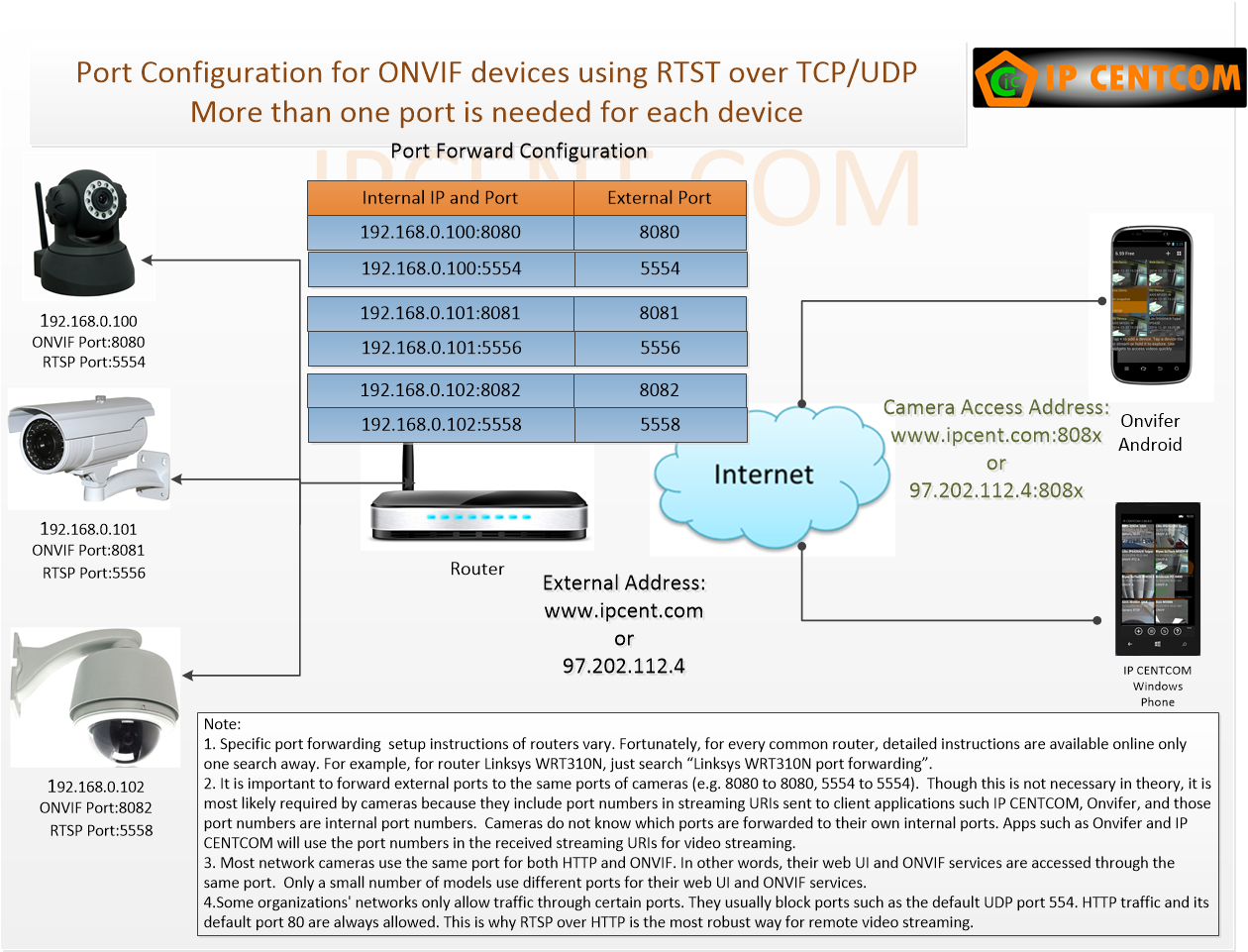
Most cameras allow modifying its used ports. Port 80 is usually used for HTTP and ONVIF, and port 554 is used for RTSP. Though it is not necessary theoretically, it is the best to change a camera's ports to match their external forwarding ports. For example, if port 8080 is forwarded to a camera's HTTP port, it would be the best to change the camera's HTTP port to 8080; if port 5554 is forwarded to a camera's RTSP port, it would be the best to change the camera's RTSP port to 5554. The following two figures show how to configure port forwarding for multiple cameras after modifying their ports to match the external ports.
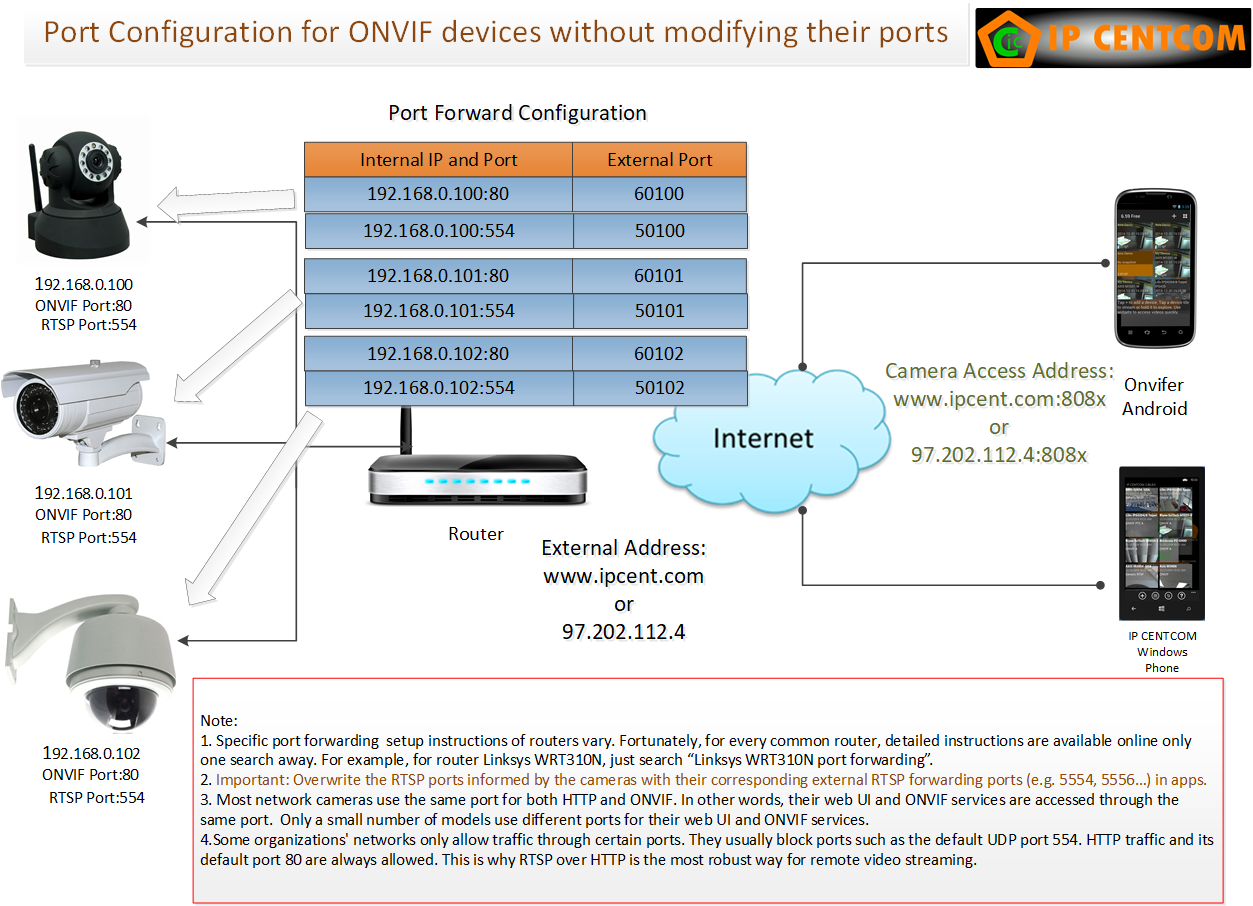
Some cameras do not allow the modification of their ports, in this case you can forward different external ports to the fixed ports of cameras, but it is critical to tell apps to overwrite the RTSP ports informed by the cameras with their corresponding external RTSP forwarding ports (e.g. 5554, 5556…) in apps. This is because the cameras are not aware of port forwarding, so they always tell apps to use their ports. All of our apps support RTSP port overwriting. The following figure shows the port forwarding configuration of this scenario.
Each router has its own port forwarding UI. All of them have the same pattern - each port forwarding entry allows forwarding one port or a range of ports from the router (called external or public) to one port or a range of ports of a device.
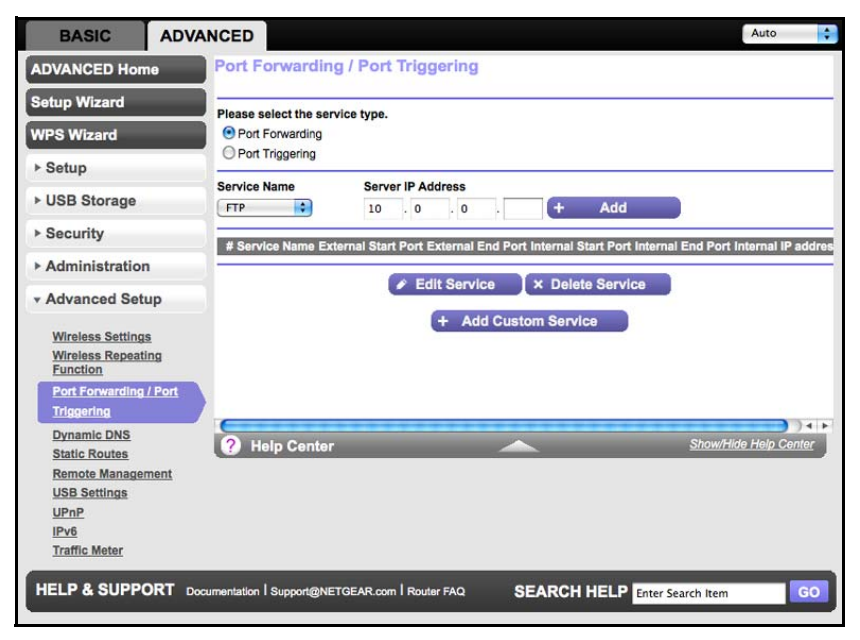
The following is the port forwarding page of Netgear N300 Wireless Gigabit Router WNR3500Lv2, a popular low cost router. It represents the simplest port forwarding UI
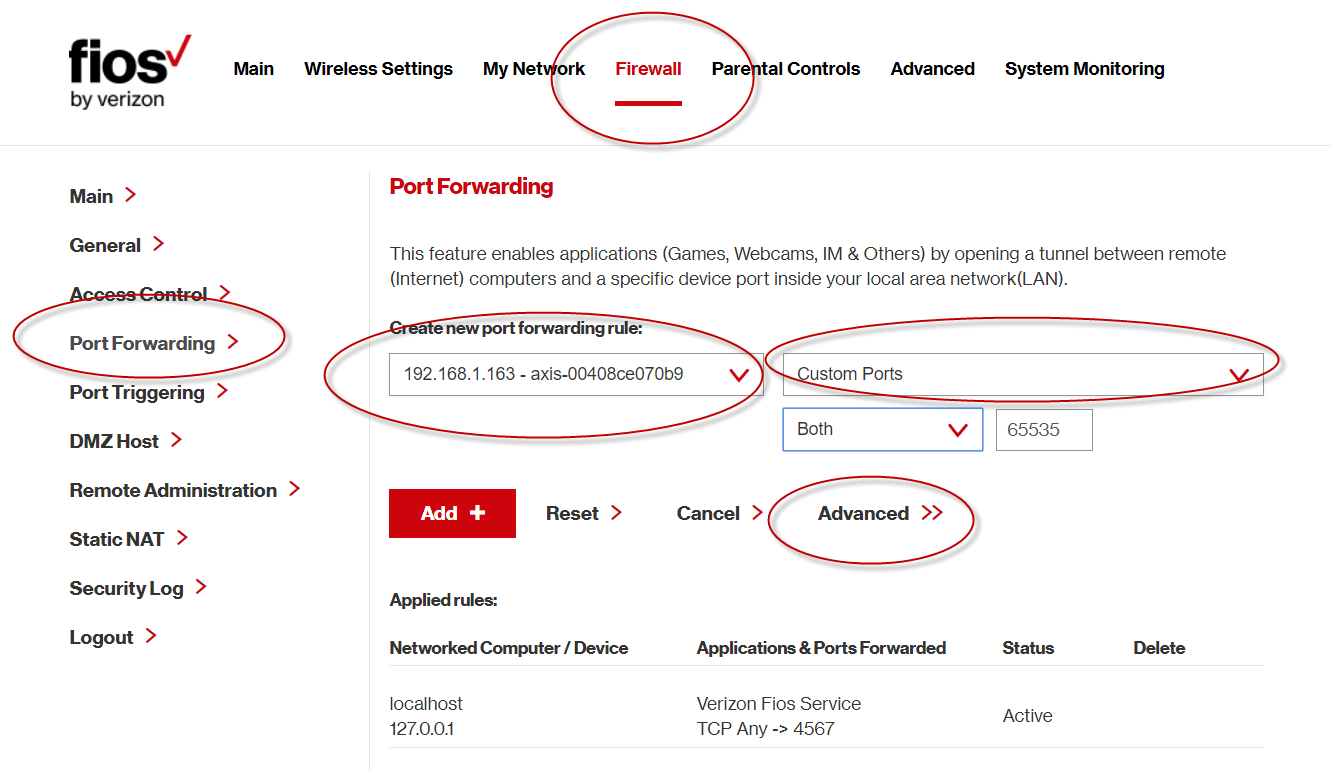
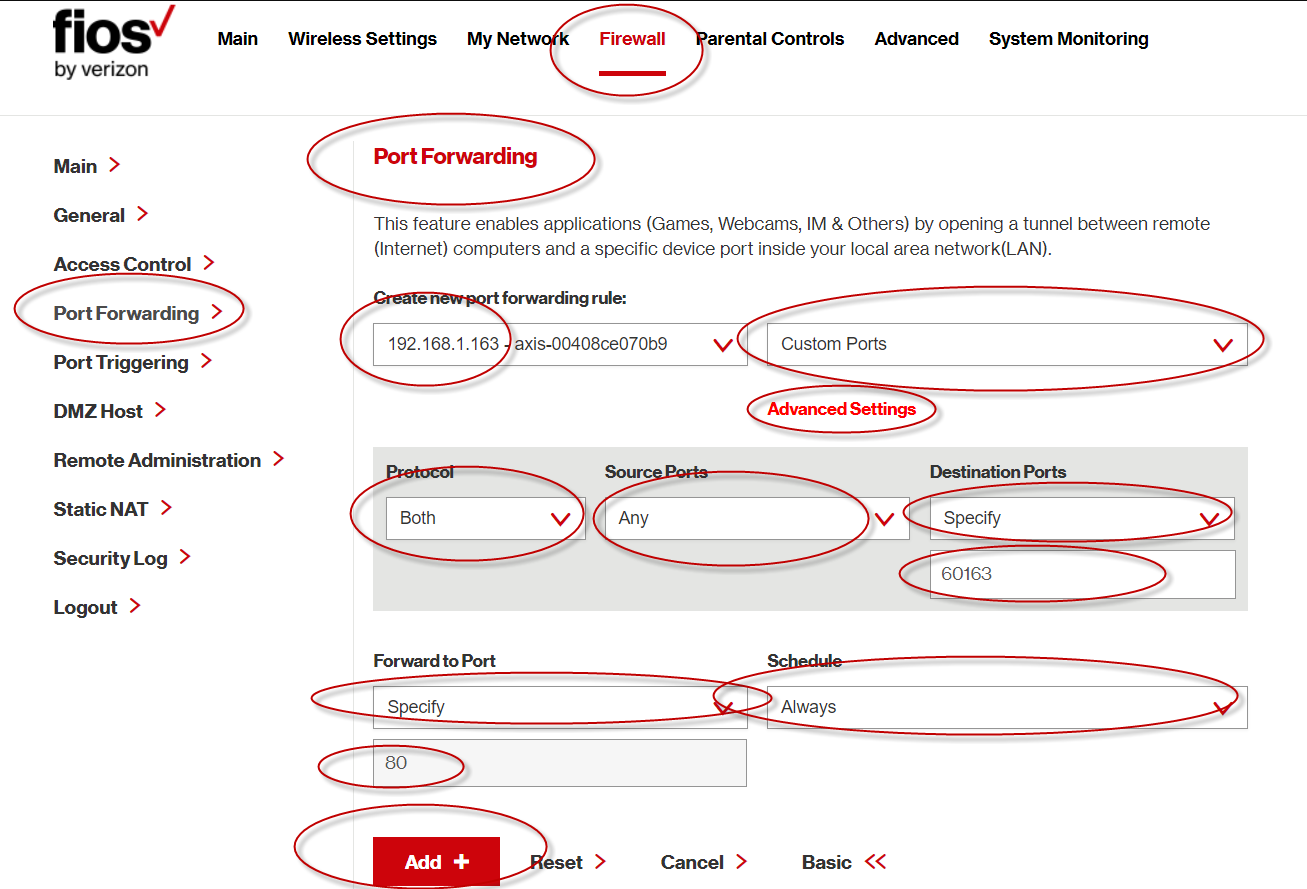
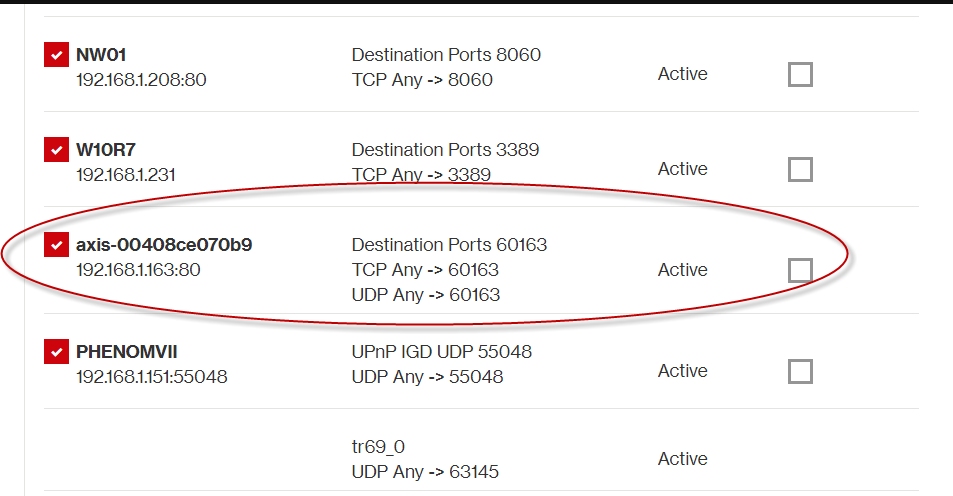
The following represents a more complex port forwarding UI from Quantum Gateway (Fios-G1100). It shows that port 60163 is forwarded to port 80 of an Axis camera following the WAN access instructions of our app. Other ports can be forwarded in exactly the same way.
- Enter router web UI > Firewall > PortForwarding > Select the Axis camera 192.168.1.163 > Custom Ports > Advanced
- Protocol: Both > Source Ports: Any (i.e. you do not care which port the connection is from) > Destination Ports: Specify 60163 (i.e. the port reached by a remote connection) > Forward to Port: Specify 80 > Schedule: Always > Add+
- A port forwarding entry for this Axis camera is added to the list:
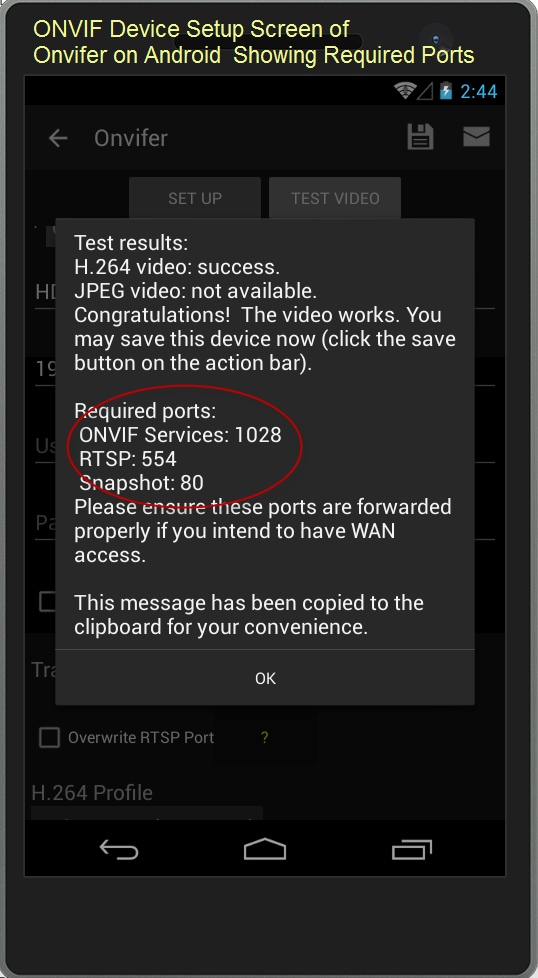
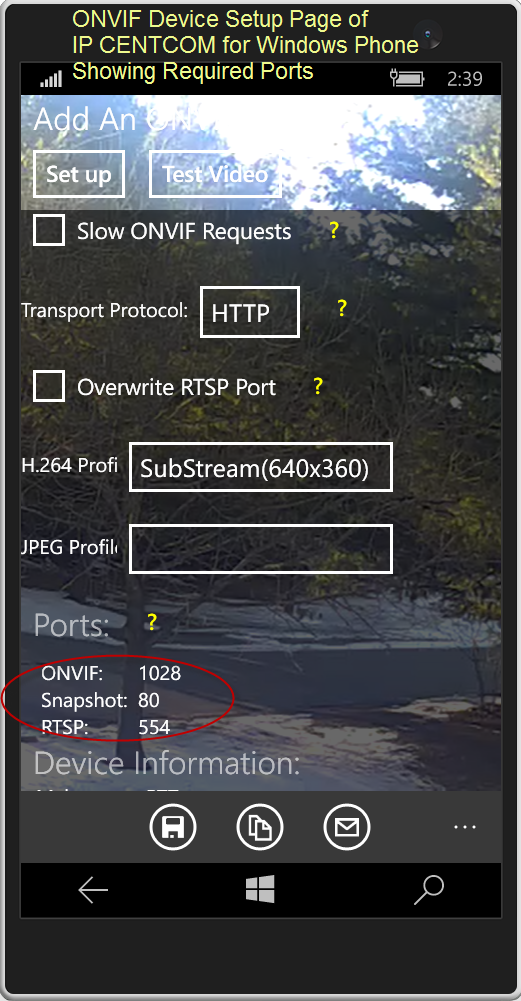
All network cameras of major brands use one port for everything - Web UI, ONVIF services, RTSP and snapshot because they use only one transport protocol - HTTP. They support RTSP over HTTP. Some cameras, especially many made in Shenzhen, China require up to three ports - one port for web UI and maybe snapshot, one port ONVIF services, and one port for RTSP.
Finding the required ports sometimes is a bit tricky. Fortunately, all of our apps list the required ports as shown by the following screenshots:
Now you can use your router's public IP address to access your network camera. If you do not know your router's public IP, there are a few ways to find it:
- Use a browser to visit any one of these websites:
- https://www.wizcase.com/tools/whats-my-ip/
- https://www.vpnmentor.com/ipinfo
- http://whatismyipaddress.com
- Visit the Internet configuration tab of your router's configuration page.
- Use command "nslookup myip.opendns.com resolver1.opendns.com" in Windows Command Prompt. The address for "myip.opendns.com" is your public IP.
Suppose your router's public IP is 109.173.137.12 and you have forwarded external port 8080 to the camera's ONVIF port 80, you can set up your camera with address 109.173.137.12:8080, and access it anywhere in the world.
https://www.ipcent.com/