Configure Apps - HD Wireless IP Camera
Most users want to access their network cameras outside their LANs (e.g. outside their homes). The next section will explain how to access the cameras via Wide Area Network (WAN) (e.g. via cellular connections). Unless you are experienced with the camera and its configuration, it is extremely important to make sure the camera works on your LAN first. This is because the WAN access will never work if the LAN access does not work. If it works on your LAN, it will be very easy to diagnose any issues with the WAN access.
Many apps have automated the setup process to a great degree, and it usually takes less than 1 minute to set up a camera before starting enjoying its video.
The following is for setting up a camera with apps Onvier for Android, and IP CENTCOM for Windows 8.1/10 and Windows Phone.
The first step is choosing the type of device for the configuration as shown by the following figure:
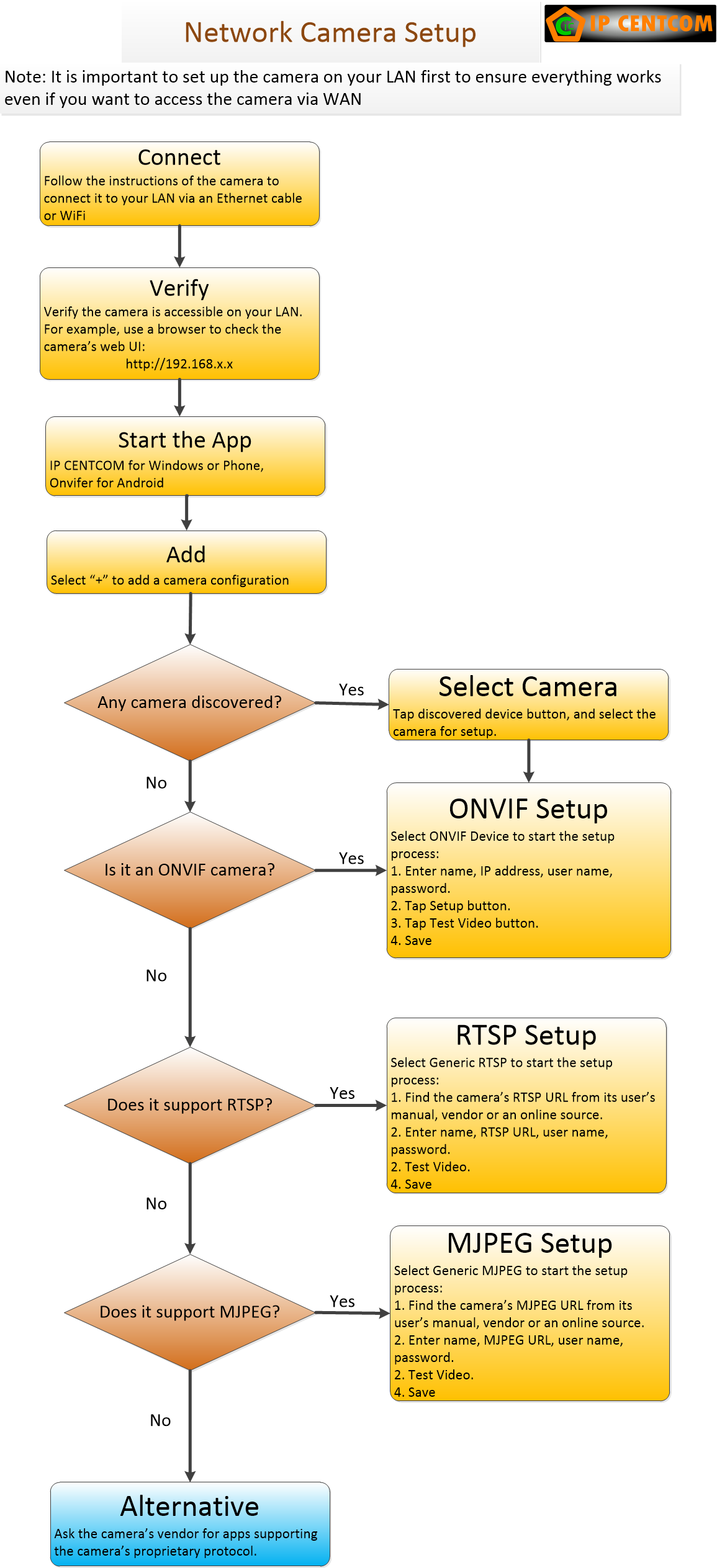
ONVIF is the recommended one. Almost all new modern network cameras are ONVIF conformant. Please note most ONVIF cameras can also be used as generic RTSP stream or generic MJPEG. Older network cameras support RTSP, MJPEG, or both.
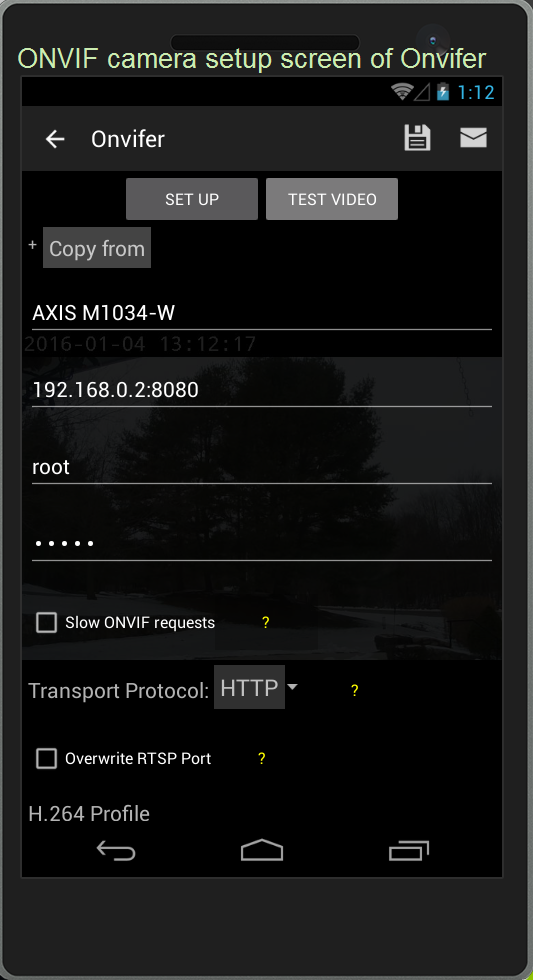
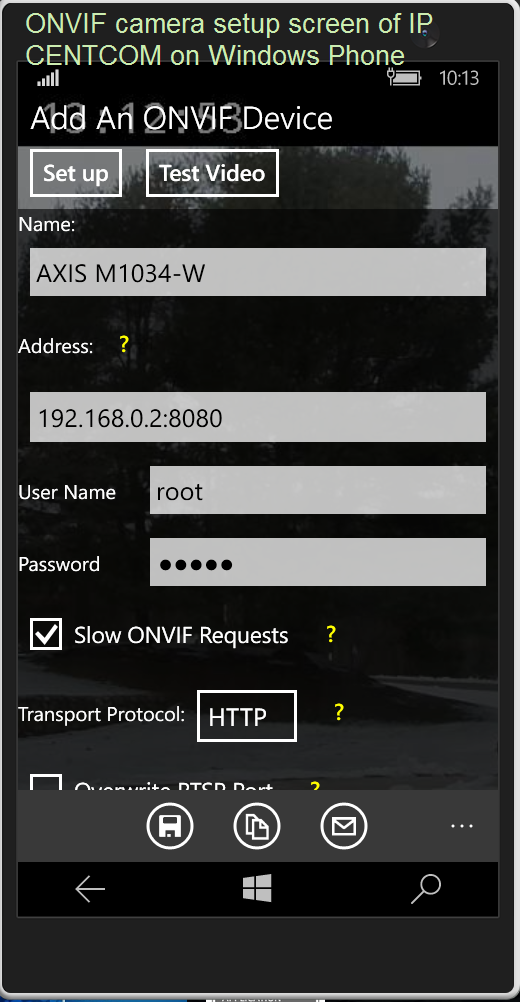
Once the type is selected, input the few required parameters (e.g. user name, password), the setup will usually be completed in seconds. The following figures show the setup screens for Onvier, IP CENTCOM for Windows Phone and Windows 8.1/10 respectively: