How To Reset HD Wireless IP Camera
Turret Cameras
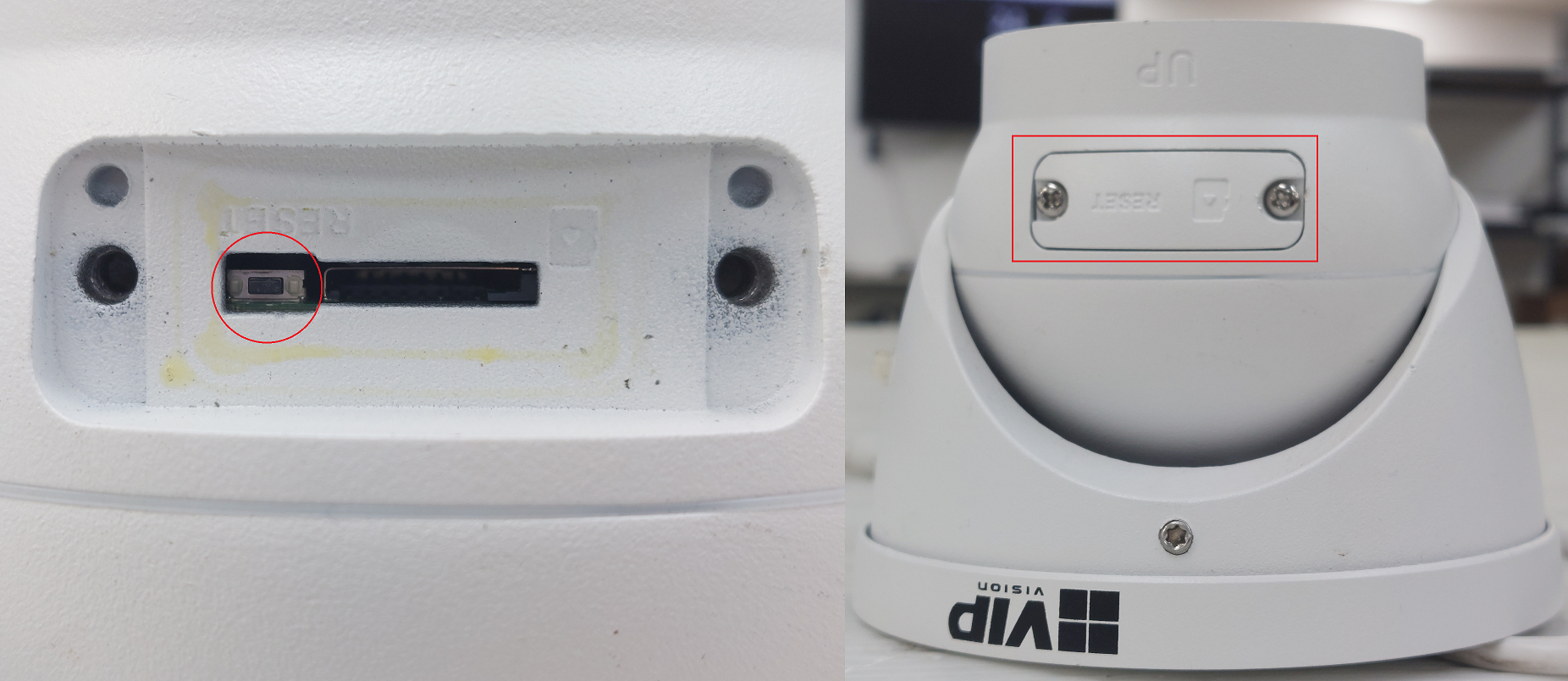
Reset Button under Flap
AI turret cameras, or turret cameras built post 2021 usually have their reset button located under a flap next to the MicroSD card slot. Press and hold the reset button for 30 seconds while the camera is powered on to reset the camera.
Reset Button on Mainboard
Cameras built pre-2021 require the camera to be opened to expose the mainboard.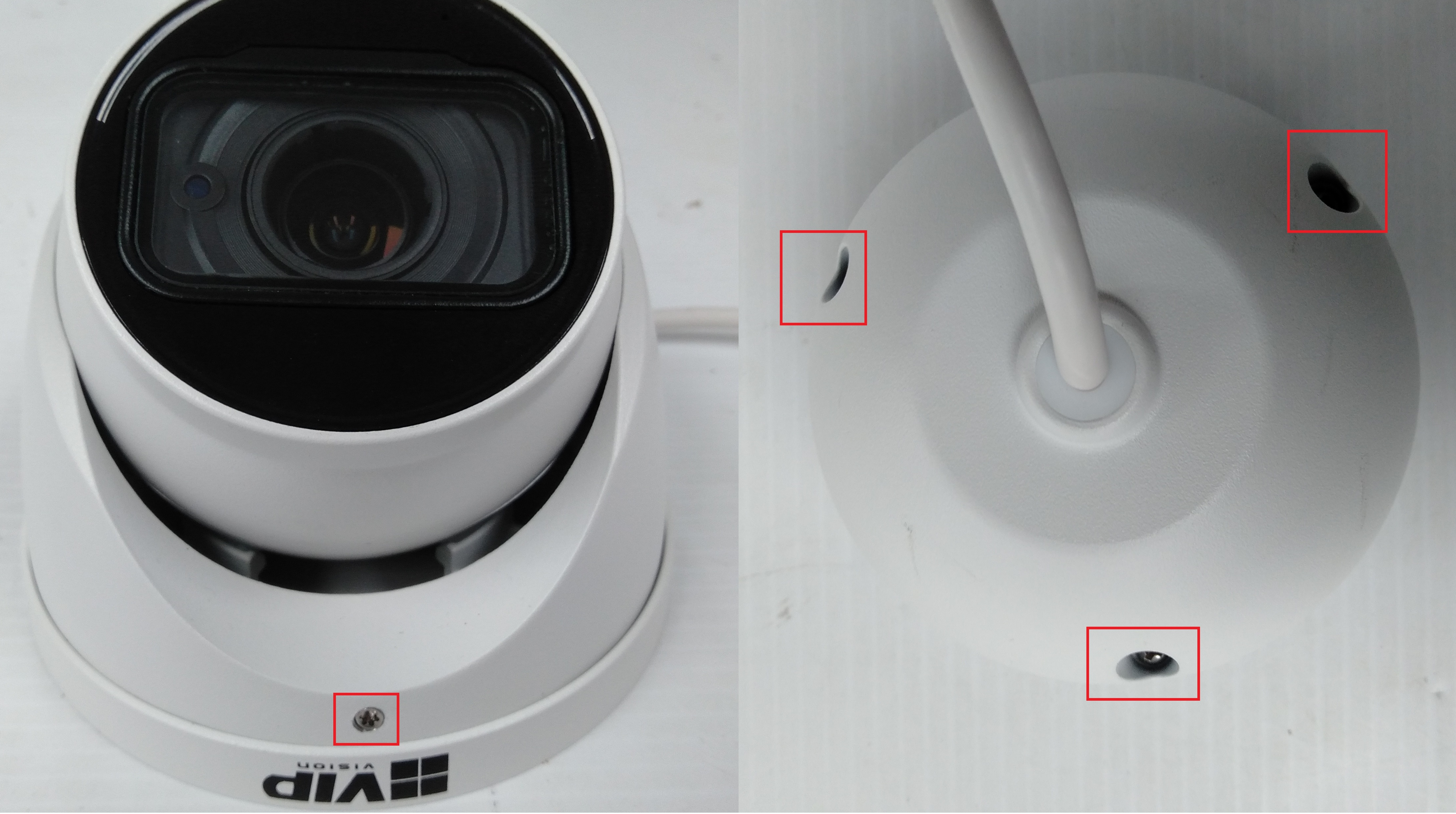
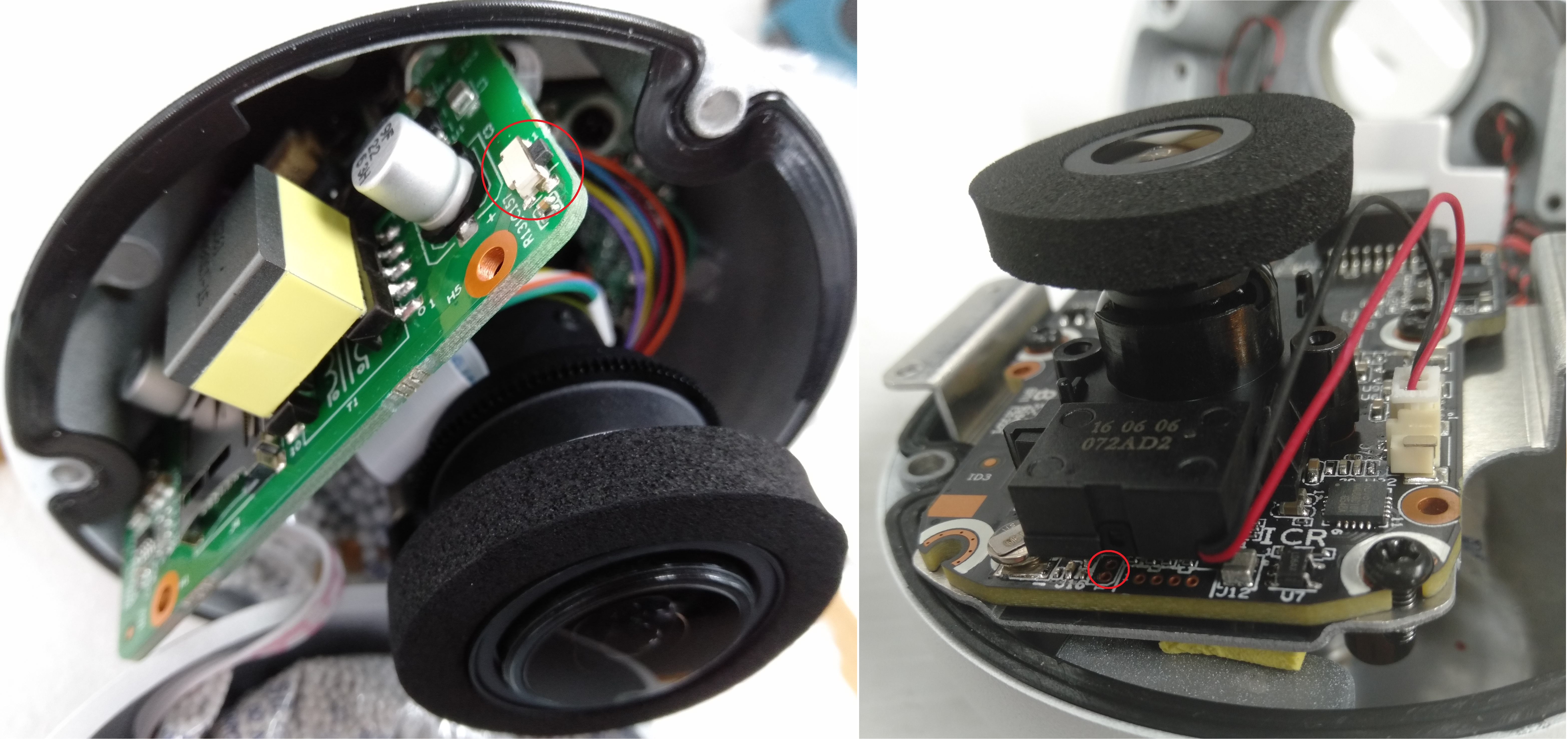
Once opened, the button will on the edge of the mainboard (see left image), press and hold this button for 30 seconds while the camera is powered on. In some cases you may need to undo two screws holding the mainboard in place, as the the button may be on the underside or on the second board.
When no button can be found, the reset may be performed by shorting two copper pads (see right image) for 30 seconds using a paperclip while the camera is powered on.
Vandal Dome Cameras
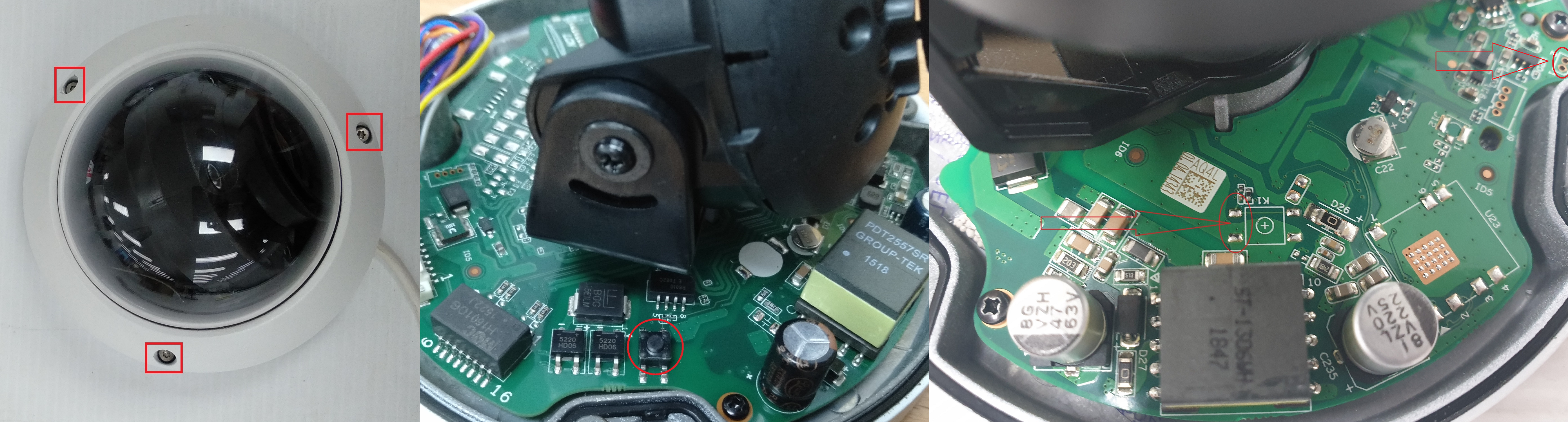
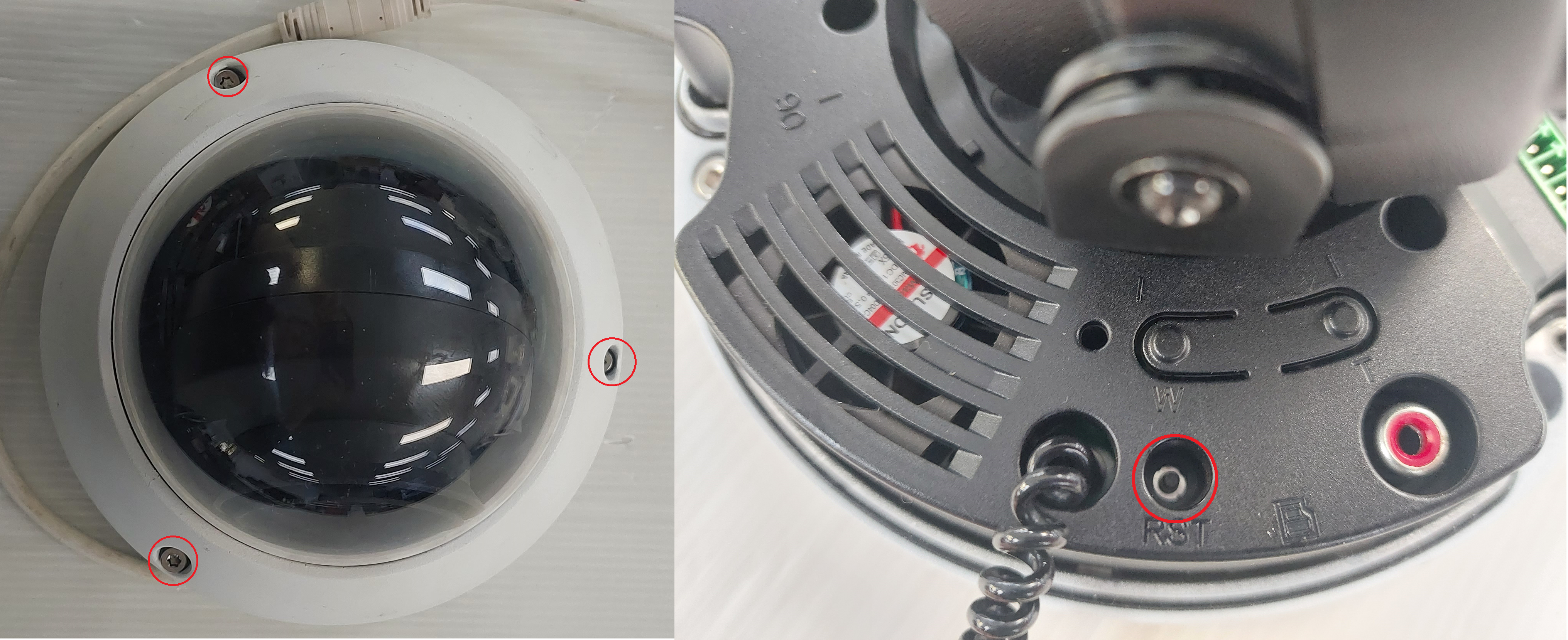
To access the reset button on large vandal dome cameras, you will need to first remove the vandal dome (see left image) by removing 3 screws.
The most common style of reset button will be the one in the middle image. Press and hold it for 30 seconds while the camera is powered on to reset it.
If there is no button, there may be copper pads you can short out for 30 seconds to reset the camera (right side of right image). There may also be four silver pads located where the reset button would usually be (left side of right image) you can short out two of vertically or diagonally for 30 seconds to reset the camera. Do not attempt to short any other part of the camera as you may cause irreversible damage.
Large Vandal Dome Cameras
To access the reset button on large vandal dome cameras, you will need to first remove the vandal dome (see left image) by removing 3 screws.
The reset button will then be located toward the edge of the housing, recessed into the plastic (see right image). Press and hold the button for 30 seconds to reset the camera.
Bullet Cameras
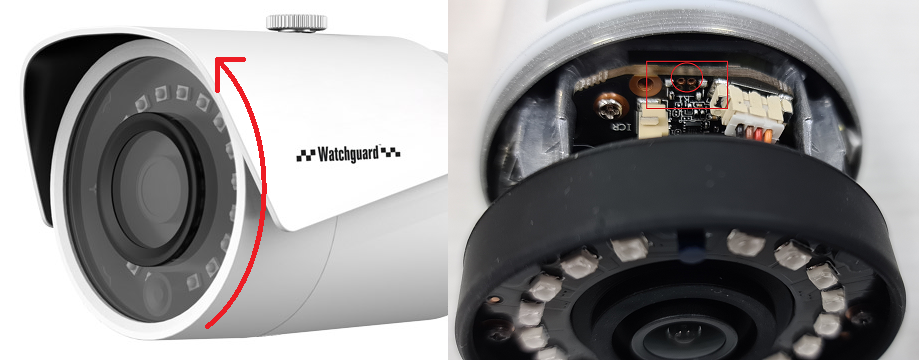
Most Bullet Cameras will have a flap that will reveal the MicroSD card slot and reset button. Press and hold the button for 30 seconds to reset the camera. Some cameras will not have a reset button, instead they will have two copper pads (see right image) which you can short out with a paperclip for 30 seconds to reset the camera.

Bullet cameras without a flap
For cameras without a reset flap you will need to remove the front of the camera (e.g by unscrewing it for cylindrical cameras) to access the reset button. Some cameras will have a physical button to press and hold for 30 seconds to reset it. Other cameras (see right image) will have copper pads to short out for 30 seconds to reset the camera.
PTZ Cameras
Fisheye Cameras
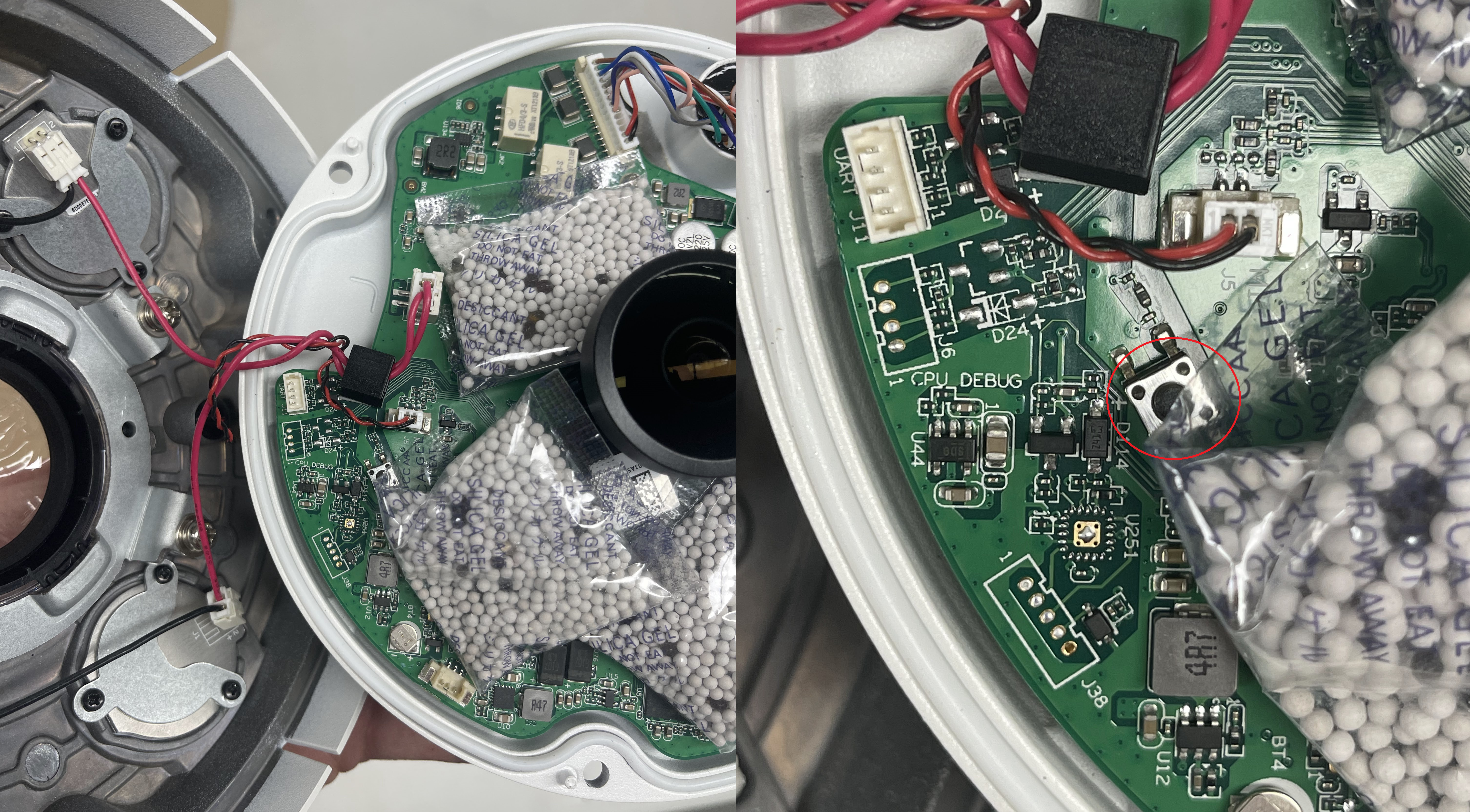
To reset a fisheye camera, you will need to undo three screws on the base of the camera to expose the mainboard.
Once the Mainboard is exposed, press and hold the reset button for 30 seconds to reset the camera.
https://help.c5k.info/